


Bookings for the District activity days are being managed through the Thornthwaite Booking system. To use the system you will need an OSM login (You can use the same login that you use for managing your section)
Step 1 – Sign in to OSM
Use the following link to access OSM. Click the green “View availability and book online today” button followed by the “Book online today” button. You will then be taken to the OSM sign in page. If you don’t have an OSM login click the “Create Account” link and complete the new account details (note that the password must be 12 characters long and include a mix of upper and lowercase letters, numbers and special characters).
Step 2 – Create a new booking
Once logged in to OSM, you will see the bookings page. Click the blue “Add Booking” button in the top right of the page.

Step 3 – Enter details of your Drey/Colony/Pack
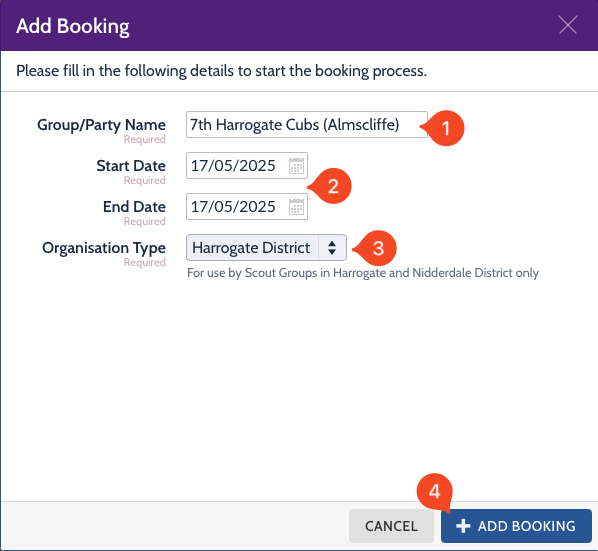
Fill in the name of you section (1). If booking onto the Cub activity day please ensure that you choose the 17th May as the start and end dates (2). For the Squirrel and Beaver activity day choose the 18th May. For Organisation type (3), select “Harrogate District”. Finally, click the blue “Add Booking” button.
Step 4 – Complete the number of leaders and participants
Enter the number of leaders (1) and the number of young people attending (2). In the bookable items section, choose either “Cub Activity Day” or “Beaver/Squirrel Activity Day” from the “Item” drop down selection (3).
Only one time slot will be available in the time slot drop down, choose this.
The “Number of People” box (4), will default to the total number of people (leaders and young people). Please change this to match the number of young people on the booking as there is no charge for leaders.
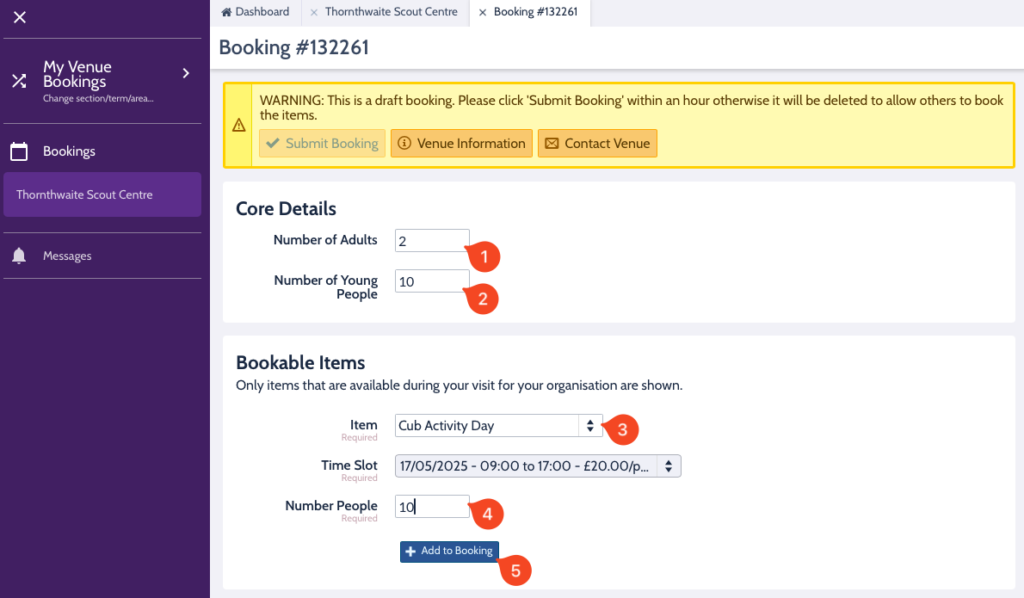
When all details are complete, click the “Add to booking” button(5).
Step 5 – Check and Submit your booking
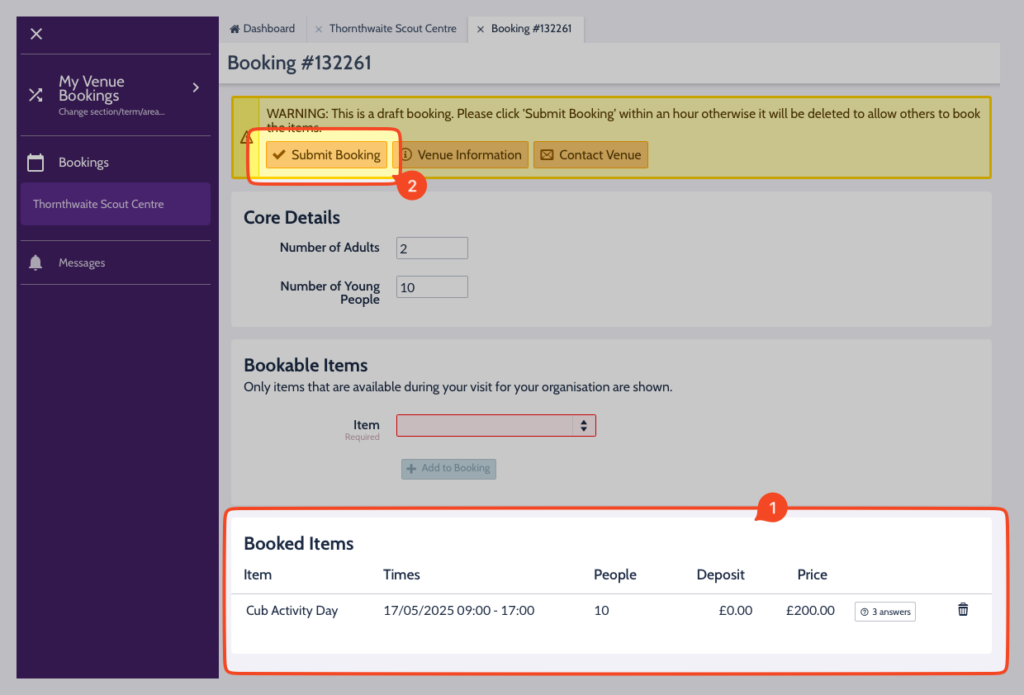
You should now see a page similar to that shown below. Under the “Booked Items” section (1) check that you have the correct number of participants (young people) entered and then click the “Submit Booking” button (2).
Step 6 – Contact Details
Complete your name and a contact phone number (ideally a mobile). Your email address should already be filled in. Your address and postcode is not required and you should enter “n/a” in these boxes. Once complete click the “Save” button.
A terms and conditions message is displayed (please note these are the terms and conditions for the campsite and not the activity day). Click the “Accept T&Cs” button.
Your booking has now been submitted to the Events Team, who will check and approve and booking. Once checked you will receive an email to let you know your booking has been confirmed. Closer to the time of the event we will reach out to collect details of any dietary requirements, allergies and additional needs.